A damaged photo is a special kind of loss. The file exists – you can see it in your folders – but it will not open, or it opens blurry, pixelated, or corrupted. You cannot delete it and pretend it never mattered, because the memory behind it is real.
The good news: damaged photos are often fixable. Data recovery software can pull back the original data, and repair and enhancement tools can restore blurry, corrupted, and old images. Here is how to bring damaged photos back to life.
Why Photos Get Damaged
Photos become damaged in several ways:
· Corruption from a failing card or drive. An interrupted write, a bad sector, or a dying card can corrupt image data.
· Incomplete recovery. A photo recovered after deletion or formatting may come back incomplete.
· Transfer interruptions. Pulling a card or unplugging a drive mid-copy can truncate files.
· Age and degradation. Old scans and legacy images may have encoding errors.
· Low-quality originals. Blurry or out-of-focus photos are technically undamaged but look broken.
Each cause needs a different fix, and most photos can be helped.
First: Recover the Best Version You Can
Before repairing, make sure you have the best possible version of the photo. If the image is damaged because it was partially recovered, try to recover it again with a deeper scan – the raw data may contain a more complete copy.
Wondershare Recoverit combines recovery and repair in one tool. It can scan a card or drive for the original photo data, then repair the damaged file during preview. This two-stage approach – recover first, repair second – catches most damaged photos.
Step 1 – Scan for the Photo
Launch Recoverit and scan the card, drive, or device where the photo was stored. The AI-accelerated scan finds deleted and corrupted photo files, including the original versions that may be more intact than what you currently have.
Step 2 – Locate the Damaged Photo
Use the search box and filters to find the photo by name, type, or date. Preview the results to see which versions are intact and which are damaged.
Step 3 – Repair During Preview
Recoverit auto-repairs corrupt photos during preview. If the photo opens in preview even though it is damaged, the repair has likely already worked. Recover the repaired version to a safe location.
Second: Repair Stubbornly Damaged Files
Some photos will not repair automatically. For those, use a dedicated repair pass:
- Re-run the scan at a deeper level. A deep scan may find a more complete version of the file.
- Use the repair module directly. Recoverit’s photo repair handles corrupted JPG, PNG, and RAW files, rebuilding the file structure so the image opens.
- Keep the original. Never delete a damaged photo before trying repair – you cannot repair what you no longer have.
Third: Enhance Blurry and Old Photos
A photo that is technically intact but blurry, noisy, or faded is a different problem – one that calls for enhancement, not repair. Recoverit includes AI enhancement tools that restore old and blurry images:
· AI Blurry Photo Enhancer sharpens out-of-focus and low-resolution photos, recovering detail that seemed lost.
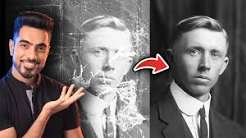
· Facial Detail Enhancer restores clarity and definition to faces in old or degraded photos.
These tools apply to the family photos, old scans, and low-quality images that “repair” alone cannot fix – because the file is fine; the image quality is what needs work.
When Repair Is Not Possible
Some damage is beyond software. A photo whose data was completely overwritten – not just corrupted – cannot be rebuilt from nothing. If the card was reused heavily after the photo was lost, the original data may be gone. In those cases, the enhanced version of the damaged file, or even the partial image, is the best you can do – and it is still worth keeping.
Preventing Photo Damage
· Back up before it happens. Copies in two places mean damage in one is not loss.
· Eject cards and drives properly. Interrupted writes are the top corruption cause.
· Don’t use failing cards. A card that errors should be retired, not trusted.
· Recover to a healthy drive. Saving recovered photos back to the source risks re-corruption.
· Keep originals untouched. Scan and repair copies, not the only version you have.
Conclusion
Damaged photos are not lost photos. Corruption, blur, and age can all be addressed – recover the best version, repair the file, and enhance the image. Wondershare Recoverit brings the whole toolkit together: scan for the original data, auto-repair corrupt files, and enhance blurry or old images with AI. Whether you need to repair and restore damaged photos or enhance a fading family portrait, the tools exist to bring your photos back to life.