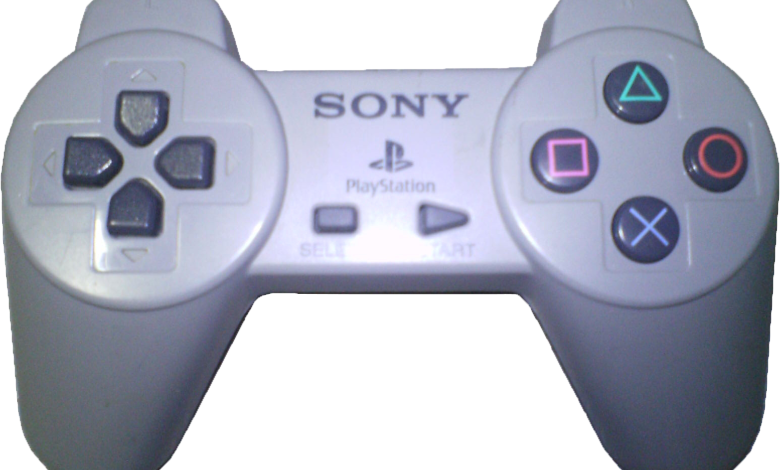
Playing wirelessly is one of the best reasons to use a PlayStation controller on PC. No cable trailing across the room, no tugging when you lean back, and the freedom to sit comfortably away from your desk or television. Bluetooth makes that possible, but wireless connections also introduce a few complications that wired players never meet, such as pairing, interference, and battery life. This guide explains how to use dshidmini with a DualShock controller over Bluetooth, what to do when pairing goes wrong, and how to keep a wireless setup reliable day after day.
How Bluetooth Pairing Works
Bluetooth pairing is simply the process of introducing two devices to each other so they recognise one another in future. Your controller has a pairing mode, usually entered by holding a combination of buttons until a light starts flashing, and your PC has a Bluetooth settings page where new devices appear for approval. When you pair the two, they exchange keys that let them reconnect automatically later, so you should only need to go through the full pairing process once. After that, turning the controller on near your PC should reconnect it within a few seconds, provided Bluetooth is enabled on the PC and the controller is not still connected to something else.
The most common pairing mistake is trying to pair a controller that is already connected to a PlayStation console. A controller can only maintain one active host connection, so if your console is on and nearby, it may grab the controller before your PC can. Turn the console off, or move out of its range, before you start pairing. Similarly, if you have paired the controller with a phone or tablet in the past, make sure that device is not actively holding the connection. Clearing old pairings from devices you no longer use will prevent a surprising number of wireless headaches.
Getting a Stable Wireless Connection
Once paired, stability depends on distance, obstacles, and interference. Bluetooth works best over short distances with a clear path between the controller and the PC, so if your PC is under a metal desk or behind a television, the signal may struggle. Moving a Bluetooth adapter to a front USB port, or using an adapter with an external antenna, can make a real difference in a difficult room. Other wireless devices, especially crowded Wi-Fi networks and USB 3 devices near the adapter, can also interfere, so a little experimentation with placement is worthwhile if you notice lag or dropouts.
Input lag is the other wireless worry, and it is worth being realistic about it. A good Bluetooth connection adds only a small amount of latency, and most players will not notice it in single-player games, platformers, or casual multiplayer. Competitive players who care about every millisecond may still prefer a cable for ranked play, and that is a reasonable choice. For everyone else, the comfort of wireless play far outweighs a few milliseconds of latency that you would struggle to measure without specialist equipment. If lag suddenly gets worse, check for interference and battery level before assuming the driver is at fault.
Battery Life and Charging Habits
Battery life shapes the wireless experience more than any setting. A DualShock controller typically lasts for several hours of play on a full charge, but vibration, the light bar, and heavy stick use all drain it faster. The simplest good habit is to charge the controller when you finish playing, rather than waiting until it dies mid-game. A short USB cable kept near your gaming spot makes this easy, and charging while you play is always an option if you run low, since the controller works fine over USB at the same time. Keeping a spare cable handy means a flat battery is a minor pause, not a ruined evening.
Watch for the warning signs of a struggling battery. If a controller that used to last for hours now dies quickly, disconnects at random, or only works while plugged in, the battery itself may be worn out. Controllers use rechargeable cells that degrade over years of use, and this is normal wear rather than a driver problem. Replacement batteries are available for popular controllers, and fitting one is usually a simple job, but if you are not comfortable opening a controller, using it wired is a perfectly good alternative. Either way, the driver does not change; only the power source does.
Pairing a Second Controller for Local Multiplayer
Local multiplayer is where wireless controllers really shine, because two players can sit comfortably without a tangle of cables. Pairing a second controller follows the same process as the first: put the second pad into pairing mode, approve it in your PC’s Bluetooth settings, and confirm that Windows sees two separate gamepads. Most games that support local multiplayer will then let each player choose their controller, although some older titles assume the first controller found is player one and offer no way to change it. If players seem swapped, try connecting the controllers in the order you want them assigned, or check the game’s own controller selection screen before starting a match.
Two wireless controllers also double the chances of interference and battery trouble, so keep both pads charged and be ready to plug one in if the connection falters mid-session. Bluetooth adapters vary in how well they handle multiple devices, and a cheap adapter that copes fine with one controller may struggle with two. If you regularly play with a friend, a better-quality adapter is a worthwhile investment, and it will improve single-player reliability too. With both controllers paired and charged, couch multiplayer on PC can feel just as natural as it does on a console.
When to Use a Cable Instead
There will still be times when a cable is the better choice. Firmware-style updates, first-time setup, and competitive matches are all good moments to plug in, because a cable removes wireless variables entirely. Many players keep their controller wired for serious sessions and wireless for relaxed ones, and that flexibility is one of the strengths of the DualShock family. If wireless ever frustrates you, plugging in is not a defeat; it is simply the most reliable connection available, and it costs nothing. You can read more about setup and supported hardware at dshidmini.com, and with a little attention to pairing and placement, wireless PlayStation gaming on PC can be every bit as enjoyable as it is on console.